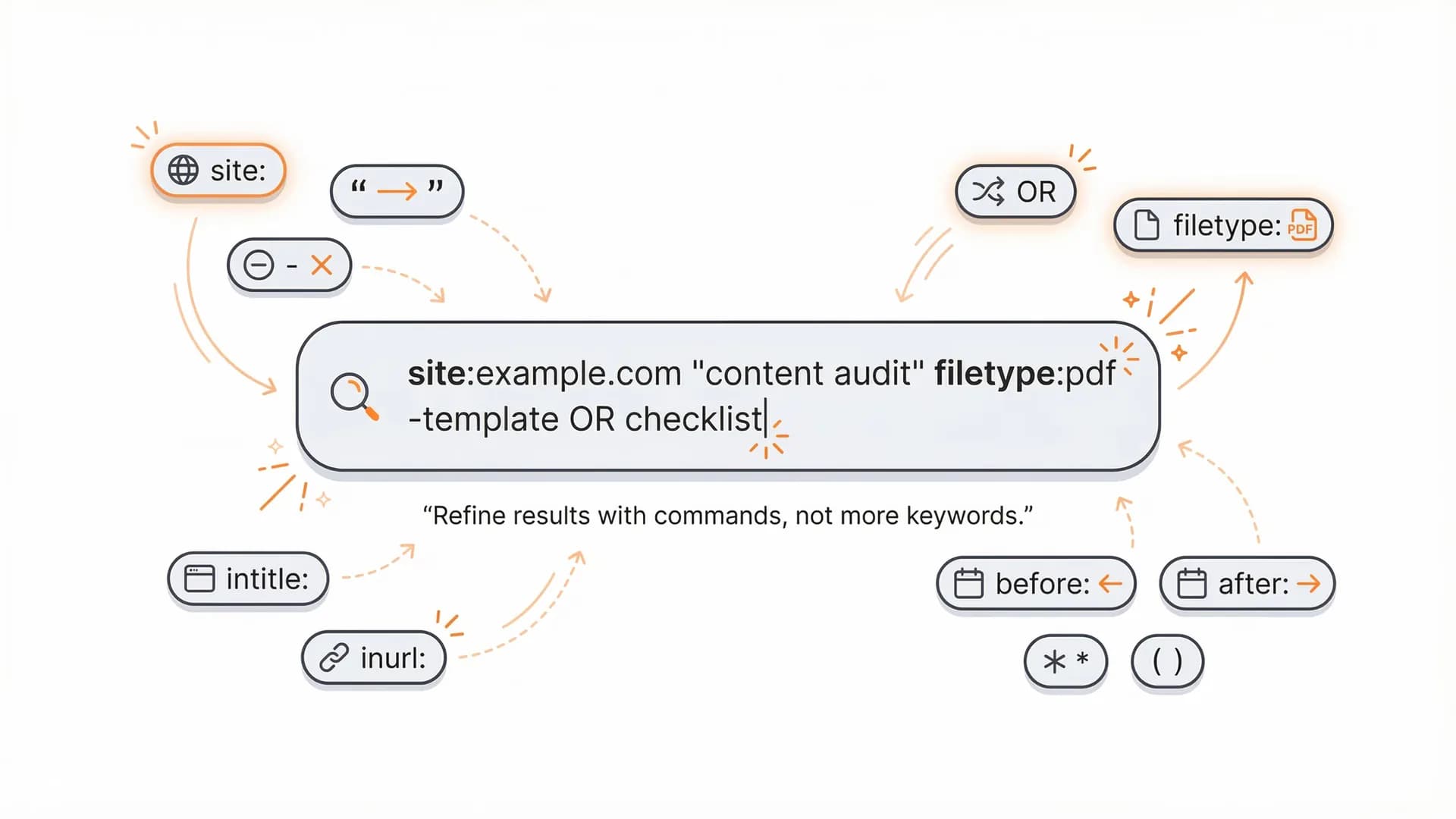
Search operators are special characters and commands that extend a normal keyword search in Google. Sometimes, you may also see them called advanced search operators, search commands, or search parameters. They let you filter and refine results in ways plain keywords can’t.
Most users only type words into the search box. But operators like “exact phrase”, - (exclude), OR, and site:, can dramatically narrow or expand what Google shows. They’re useful for research, content discovery, competitor analysis, spot-checking a site during a technical SEO audit (check out our 2026 technical SEO checklist), and finding files like PDFs.
Google changes which operators that are still working and what not, and it rarely announces it. This guide lists operators that are currently supported or widely reported to work, and it tells you which ones to stop using.
TL;DR
Search operators are commands you add to a Google query to filter results by exact phrasing, site, date, or file type. It’s not necessary to memorize every command, get familiar with a few core operators like quotes “ “, OR, site: , filetype: ,intitle: , before: / after:. Knowing those operators are enough for quick checks, competitor content analysis, and long-tail keyword discovery. Google doesn’t support NOT, so use - instead, and operators like cache: , related: , link:, and info: are no longer working. The site: operator gives you a relative view of a website and not a full index count. Make sure to verify your audit findings with Google Search Console.
What are Search Operators in Google?
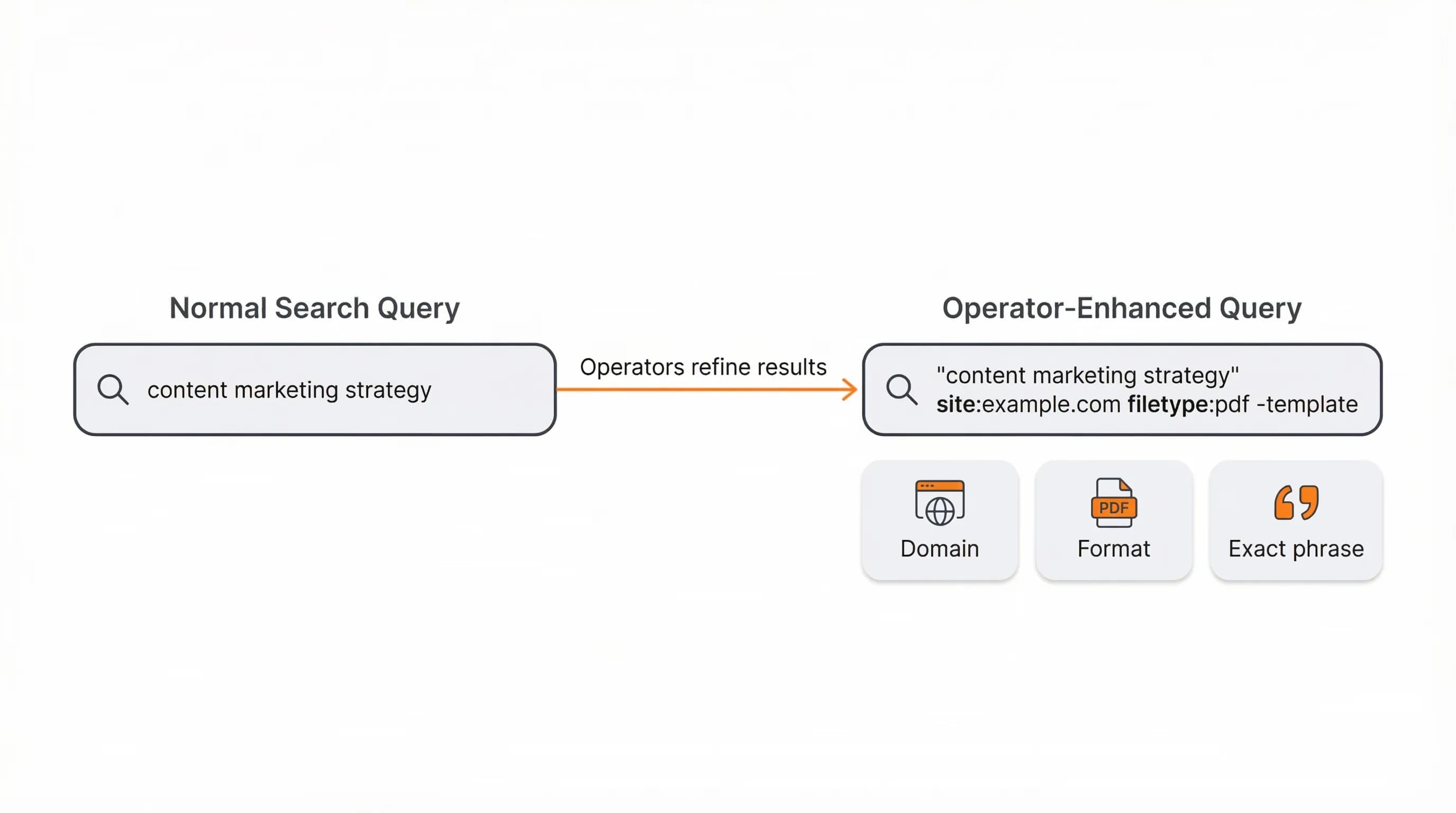
Google search operators are characters and commands that you add to a query to control where your keywords must appear and which results to exclude. You can filter by site, file type, title, URL, or date.
The most practical ones:
- Quotes "keyword phrase" force exact phrase matches
- Minus -keyword excludes any result containing that term
- Site site:example.com limits results to one domain or subdomain
- Filetype filetype:pdf finds specific document formats
Boolean vs Search Operators
Boolean logic (AND, OR, NOT) comes from databases and library catalogs. Google supports a simplified version for it:
What you need | How to write it | Example |
Results with all terms | A space (implicit AND) | marketing automation |
Results with either term | OR in capitals or | | college OR university |
Exclude a term | - (minus) | football -soccer |
Group conditions | Parentheses | (copywriting OR “content writing”) “freelance rates” |
There are two points that you need to understand. First, you never need to type AND, because Google already requires every term. Second, NOT isn’t an operator in Google. Use - instead, so apple -iphone excludes pages containing “iphone.”
Operators like site:, intitle:, inurl:, before:, and after: don’t exist in traditional Boolean syntax. They are Google-specific filters that control where a term appears or which domain and dates to include. Academic databases need explicit Boolean syntax like (climate change) AND (policy OR regulation). Google is simpler, but it gives you less control.
Google Search Operators Reference
There are operators that are still actively working in 2026 that are worth learning. We’ve tested these operators, so here’s the list:
Operator | Function | Example |
“phrase” | Matches the exact phrase | “Technical seo checklist” |
-term or -”phrase” | Exclude a term or a phrase | Link building -”guest post” |
OR or | | Matches either term | “content brief" OR “content outline” |
( ) | Groups term | (link building OR outreach) SaaS |
* | Placeholder for one or more words | “best * tools for seo” |
n1..n2 | Number range | best laptop 2023..2025 |
site: | Limits results to a domain, subdomain, or path | site: example.com/blog “content brief” |
filetype: or ext: | Limits results to a file type | “seo checklist” filetype: pdf |
intitle: | Keyword must appear in the page title | intitle “technical seo” |
allintitle: | All following words must appear in the title | allintitle: “seo checklist” |
inurl: | Keyword must appear in the URL | inurl: “pricing” |
allinurl: | All following words must appear in the URL | allinurl: “seo guide” |
intext: | Keyword must appear in the body text | intext: “crawl budget” |
allintext: | All following words must appear in the body text | allintext: “core web vitals” |
before: / after: | Filters by date (YYY-MM-DD, or just a year) | “core web vitals” after : 2025-01-01 |
define: | Shows a dictionary definition | define: “crawlability” |
AROUND(n) | Terms must appear within n words of each other. Not officially documented, better to test it first. | “robots.txt” AROUND (3) “seo” |
source: | Filters by news source and only works in Google News | SEO source:searchengninejournal |
The “all-in” operators like allintitle, allinurl, allintext: treat every word after them as part of the filter. So , every time you add OR, parentheses, or any other operators, they will break down. When you want to combine filters, use the single versions like intitle:, inurl:, and intext:.
Retired or Unreliable Search Operators
Over the years, Google has retired or deprecated these operators. They do nothing when you use the retired ones, and the unreliable operators give you inconsistent results.
Operator | Status |
cache: | Retired (removed from documentation in September 2024) |
related: | Retired in (removed from documentation in July 2023) |
link: | Retired |
info: | Retired |
phonebook: | Retired |
+ and ~ | Dropped long ago |
daterange: | Unreliable |
inanchor: , allinanchor: | Inconsistent results |
weather: , time: , stocks: , map: , and currency or unit conversions are commands and not search operators, hence we don’t list them here.
Practical Examples
Government documents: site:irs.gov child tax credit filetype:pdf finds official IRS PDFs about the child tax credit, cutting through blog posts and news articles to get straight to the source.
Recent policy updates: “electric vehicle tax credit” site:energy.gov after:2025-01-01 pulls up latest Department of Energy official pages about EV incentives.
Guest posting opportunities: intitle:"write for us" inurl:write-for-us marketing -site:medium.com discovers marketing sites seeking contributors, excluding Medium from results.
Quick definition: define:disavow gives you definition on an unfamiliar term you’ve found.
Stack operators strategically to find what you need in one search instead of ten.
Site Search Operators: Searching Within One Website
The site: operator limits results to a single domain, subdomain, or folder. On sites with weak internal search, it’s often a useful alternative to search rather than on their search box.
Everyday Uses
News articles: site:nytimes.com "student loan forgiveness" pulls up New York Times articles on the topic, organized by Google's relevance algorithm instead of the Times' internal search.
Forum discussions: site:reddit.com "freelance writer rates" surfaces Reddit discussions about pricing without wading through marketing content or sponsored posts.
SEO Applications
Internal linking audits: site:yourdomain.com "email marketing" surfaces page mentioning email marketing. Useful for locating older posts that should link to your new comprehensive guide.
Competitor research: site:competitor.com "pricing" shows how competitors structure their pricing pages. You might discover tiered plans, product bundles, or positioning angles worth analyzing.
Combining Site Search with Other Operators
The real power comes from stacking operators. site:cdc.gov intitle:"flu" after:2025-01-01 surfaces recent CDC pages with "flu" in the title that Google dates after January 2025. This precision is hard to achieve with most website search tools.
Large sites and government databases often have terrible internal search. Site operators solve that problem. They're also useful for competitor research, content gap analysis, and finding specific content types on poorly organized sites.
Combining Operators and Keywords Effectively
Single operators are useful. Combining them is where you find exactly what you need in one search instead of ten. Stack operators that each solve a different part of your search problem. Need content about email marketing, published on a specific blog, with a particular keyword in the title? That's three filters working together.
Effective Combinations
Topic + site + title: site:blog.example.com intitle:"email marketing" "welcome sequence" finds articles on a specific blog about email marketing that also mention welcome sequences. You're narrowing by domain, title content, and body content simultaneously.
Topic + OR logic: (copywriting OR "content writing") "freelance rates" searches for pages discussing freelance rates in either copywriting or content writing contexts. The parentheses group the OR logic so Google reads it correctly.
Competitor + exclusion: "best project management tools" -asana -trello surfaces listicles and comparison articles that don't mention Asana or Trello. If you're launching a competing tool, these lists might be more open to adding a new option.
Parentheses help when you're using OR logic or combining multiple conditions. (laptop OR desktop) deals under $500 makes it clear you want deals for either device type, not pages that mention all those terms separately.
Keep queries realistic. You can technically chain 10 operators into one massive query, but that often produces zero results or forces Google to ignore some of your filters. Start with two to three operators that directly address your search goal, then add more only if you're still getting too much noise.
Advanced Search Operators for SEO
If you're working in SEO, search operators become quick diagnostic tools. They help you spot-check sites, find content gaps, and uncover link building opportunities without relying entirely on paid software. Don’t treat it as final data, but as leads to verify instead.
Indexing and Technical Audits
Spot-check what's indexed: Run site:yourdomain.com to see samples of pages that Google shows for your domain. You might spot staging URLs, old subdomains, or pages that shouldn't be public. The results are approximate, refer to Page Indexing report in Google Search Console.
Find specific file types: Use site:yourdomain.com filetype:pdf to see which PDFs Google can show for your domain. You might find old documents or duplicate content you didn't know existed.
Content Protection
Spot plagiarism: Take a unique sentence from your article, wrap it in quotes, and search "unique sentence from your article" -site:yourdomain.com. If someone copied your content verbatim, this surfaces quickly.
Link Building Opportunities
Find resource pages: Search [topic] intitle:resources inurl:resources to locate curated lists of tools, articles, or services in your industry. These pages often accept new submissions if your content fits.
Discover guest post sites: Try intitle:"write for us" inurl:write-for-us [topic] to find sites actively seeking contributors.
Locate review roundups: Use intitle:review (intitle:brand1 OR intitle:brand2) to find comparison articles that might feature your product.
Competitive Research
Identify similar sites: Google retired the related: operator, so search your competitor’s main service keyword and note which sites rank beside them. This helps you map your competitive landscape and find sites to analyze or target for partnerships.
Find content gaps: site:competitor.com intitle:”what is” pulls up articles with definition style that a competitor has published. You can use it to compare against your content plan.
Using Search Operators to Find Long-Tail Keywords
Long-tail keywords are longer, more specific search phrases with lower search volume and competition but higher conversion potential. Instead of ranking for "SEO," you rank for "how to optimize blog posts for local SEO."
Research shows about 91.8% of keywords are long-tail. They're easier to rank for, have clearer search intent, and align better with what people actually type when they're ready to take action.
Search operators help you discover these phrases by showing you how real people talk about topics on forums, Q&A sites, and competitor blogs.
What Works
Explore question patterns: "how to * search operators" returns pages containing phrases like "how to use Google search operators" or "how to master search operators." You can put the wildcard inside the quotes so Google will treat it as a placeholder within a phrase. Check the variations as Google doesn’t autocomplete the gap. Each variation is a potential long-tail keyword.
Review competitors: site:competitor.com "search operators" pulls up every page where they mention the topic. Read through their titles and content to see which angles they target.
Mine real questions and discussions: site:quora.com "Google search operators" or site:reddit.com "SEO keyword research" surfaces actual questions and discussions. These reflect genuine search intent.
Combine with dates or filetypes: “keyword research” site:.edu filetype:pdf after:2025-01-01 finds latest academic publications that reveals terms that can’t be found in commercial keyword tools.
Most SEOs pair this with tools like Ahrefs or SEMrush. Operators give you real-world phrasing. Tools give you search volume and keyword difficulty.
Example: try site:reddit.com "local SEO for *" * to find questions like "local SEO for dentists," "local SEO for lawyers," "local SEO for restaurants." Each is a niche you can research further.
Common Mistakes and Limitations
Search operators have limitations. Know what they can't do so you don't draw wrong conclusions from incomplete data.
Using Retired or Unreliable Operators
Google has officially dropped several operators that used to work. link:, info:, phonebook:, cache:, and related: are no longer functions as originally documented. And others like inanchor:, allinanchor:, and daterange: are inconsistent. Don’t rely on unreliable operators for research or audits.
Results Are Approximate
Operator results aren't comprehensive. Google personalizes search results based on location, search history, and dozens of other factors. The results you see for site:yourdomain.com might not include every single indexed page. Date filters rely on when Google indexed or updated a page, not necessarily when it was published.
Validate with Dedicated Tools
Use operators as practical shortcuts, not as precise analytics tools. If you're doing serious SEO work, validate important findings with dedicated software. Screaming Frog for crawl analysis, Google Search Console for actual index status, Ahrefs or SEMrush for backlink data. Operators help you spot patterns and surface issues quickly, but they don't replace comprehensive tools when accuracy matters.
Apply What You've Learned
Test three operator combinations this week on a topic you're researching or a site you manage. Pick one basic combination like site:yourdomain.com intitle:"keyword", one competitor research query, and one long-tail keyword discovery pattern with wildcards. See how much faster you find relevant results compared to plain keyword searches.
If your team does regular SEO or content work, build a small internal playbook of go-to operator queries. Document the combinations that consistently surface useful information for indexing checks, content gaps, or link opportunities. This turns operators into a repeatable research process instead of random tricks.
Once you're comfortable with operators, explore how dedicated keyword research and SEO tools extend these capabilities. Tools like Ahrefs, SEMrush, and Moz combine operator-style filtering with data you can't get from Google: search volume, keyword difficulty, backlink profiles, and traffic estimates. Operators teach you how to ask better questions. Tools give you the data to answer them at scale.